RTPS Bihar Certificate Download
Before you try to download anything, confirm one thing: your application status must show “Disposed” (निष्पादित) on the portal. If the status still reads “Under Process” or “Pending,” no download method will work — the certificate simply does not exist yet on the server. Once it shows Disposed, wait at least 24 hours before attempting a download. That delay is real: the approval and the PDF generation happen on separate servers, and they do not sync instantly.
This page covers all four download methods — portal, ServicePlus Inbox, SMS link, and DigiLocker — and every certificate type issued through RTPS Bihar: Jati, Niwas, Aay, EWS, NCL, and Charitra Praman Patra.
How to Check If Your Certificate Is Ready
Go to serviceonline.bihar.gov.in → Citizen Section → Track Application Status. Enter your Application Reference Number (format: BICCO/2025/XXXXX — printed on your acknowledgement slip) and check what the status column says.
| Status | Meaning | Can You Download? |
|---|---|---|
| Submitted / Pending | Under review | No |
| Under Process | Officer reviewing | No |
| Disposed / निष्पादित | Approved, PDF generated | Yes — after 24 hours |
| Rejected / अस्वीकृत | Denied — reason shown | No — reapply |
Method 1 — Portal Download (No Login Needed)
This works for most people and requires nothing beyond your reference number and the name you used during application.
- Open
serviceonline.bihar.gov.in - In the Citizen Section on the right side, click “Download Certificate”
- Select your service type from the dropdown — choose “RTPS/Others”
- Enter your Application Reference Number exactly as shown on your slip
- Enter your Applicant Name in English — spelling must match your application exactly. “Rahul Kumar” and “Rahul kumar” are treated as different entries.
- Enter the CAPTCHA and click Download Certificate
- The PDF will open in a new tab — save it immediately
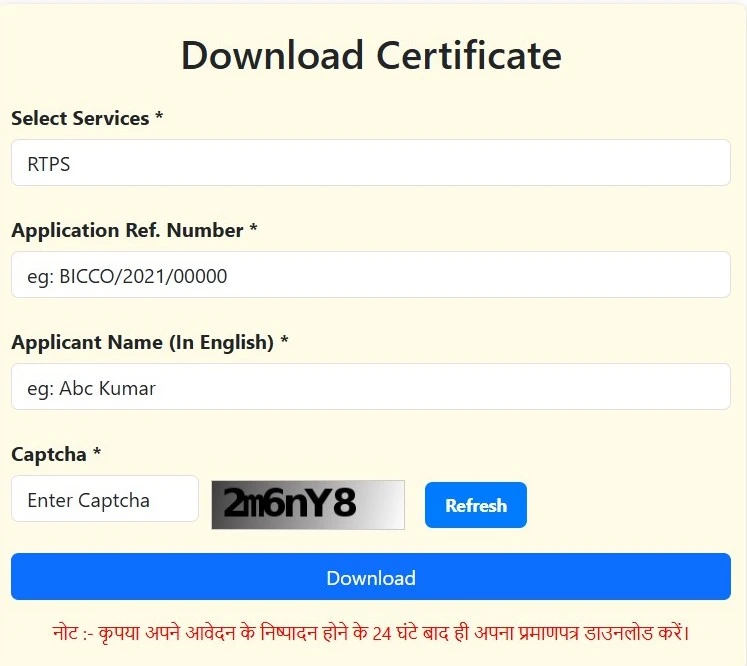
If you get “No Record Found”: Either the 24-hour window has not passed, or there is a server mismatch. Try switching to RTPS 1 (rtps1.bihar.gov.in) or RTPS 3 — these are mirror servers running the same database, not different portals. They often respond when the main URL is overloaded.
Method 2 — ServicePlus Inbox (Applied with Login)
If you applied while logged into your MeriPehchaan account, your certificate lands directly in your ServicePlus Inbox — no reference number needed.
- Log into
serviceonline.bihar.gov.inwith your mobile number and OTP or password - Go to “My Applications” or “Inbox” from the left menu
- Find the approved application — status shows “Disposed”
- Click it — a “View Certificate” or “Download Certificate” link appears
- Click to open the digitally signed PDF
This method produces the cleanest PDF and is the most reliable. The Inbox also shows rejected applications with the rejection reason — useful if you need to understand what to fix before reapplying.
Method 3 — SMS Link
When your certificate is approved, Bihar’s ServicePlus system automatically sends a download link to the mobile number you registered during application. Check your messages for a sender like BIHSVC or a similar government SMS ID.
Tap the link — it opens the certificate PDF directly on your phone. Save it to Google Drive or your phone storage right away. These SMS links have an expiry period; if yours has expired, use Method 1 instead.
If you never received the SMS, the registered mobile number was likely entered incorrectly during application. Go back to Method 1.
Method 4 — DigiLocker
Bihar’s RTPS portal pushes approved certificates to DigiLocker automatically — you do not need to upload anything yourself.
- Open digilocker.gov.in or the DigiLocker app
- Log in with your Aadhaar-linked mobile number
- Go to “Issued Documents”
- Look under issuer: “Government of Bihar” or “Bihar ServicePlus”
Your Jati, Niwas, Aay, and EWS certificates will appear here once synced. Note that DigiLocker sync takes 48–72 hours after approval — longer than the portal. If your certificate is urgent, use Method 1 first.
Why DigiLocker matters: Documents stored here are legally accepted without printing under India’s IT Act. NSP scholarships, SSC, UPSC, and Bihar state job portals accept DigiLocker-linked certificates directly — no scanning, no uploading a PDF copy.
Certificate-Specific Notes After Download
Jati Praman Patra (SC/ST/OBC/EBC)
Verify your father’s name and address on the PDF — these are the fields most often entered incorrectly at application time. Bihar’s Jati certificates carry no expiry date, so the same downloaded PDF is valid for life.
Niwas Praman Patra
Check that the tehsil and district names are correct. Block-level certificates show the CO’s signature; SDO-level carries the SDO’s signature. Valid for 3 years.
Aay Praman Patra
Note the date of issue printed on the PDF — most institutions treat income certificates as valid for 1 year only. The income figure shown is what you declared at application; verify it matches.
EWS Certificate
Bihar state EWS and Central government EWS certificates have different formats. The PDF header will specify which type you received. Valid for 1 year.
NCL Certificate
Two versions exist — one for Bihar state government posts and one for Central government posts. Check the PDF to confirm which. Valid for 1 year.
Charitra Praman Patra
Carries the District Magistrate’s or SDO’s digital signature. Valid for 6 months — check the issue date before submitting to any institution.
Fixing the 7 Most Common Download Problems
- Blank PDF: The most reported issue. Cause: “Disposed” status appeared but the certificate PDF has not yet been generated on the backend server. Wait 24–48 hours, clear your browser cache, and retry. During high-traffic periods (board exam season, scholarship deadlines), this delay can stretch to 48 hours.
- Download button does nothing: Browser compatibility issue. Switch to Chrome or Firefox. Disable popup-blocking extensions. Allow popups from
serviceonline.bihar.gov.inin your browser settings. - “No Record Found” despite correct details: Three possible causes — (1) 24-hour sync not complete, (2) name entered with even a minor spelling difference, (3) you are on a server that has not synced yet. Try a different RTPS server.
- Digital signature error in PDF reader: Open the certificate in Adobe Acrobat Reader (free). Go to Preferences → Signatures → Verification, and update trust settings to include government-issued certificates. The signature is valid — only certain readers fail to recognise Bihar’s root certificate.
- Status stuck at “Pending” for 15+ days: Visit your Block office (Anchal Karyalay) in person with your acknowledgement slip. Ask the Revenue Officer to check the internal queue. You can also file a complaint through the RTPS portal’s grievance section.
- Applied offline at RTPS counter — nothing shows online: Counter applications processed by CSC operators are not always synced to the online portal. Return to the same CSC or RTPS counter — the operator can print the certificate directly from the backend.
- SMS link expired: Use Method 1 (portal download) or check DigiLocker. The SMS link is a shortcut, not the only path.
How to Verify a Certificate Is Authentic
Every certificate downloaded from the RTPS portal carries a digital signature from the issuing officer — the CO, SDO, or DM depending on the application level.
To verify: Go to serviceonline.bihar.gov.in → Verify Certificate → enter the certificate number printed at the bottom of your PDF. A valid certificate will show the officer’s name, designation, and date of signing.
Employers and colleges can run this same check. The certificate number is unique and tied to the specific application — it cannot be fabricated.
After You Download
Print on A4 at 100% size — do not scale to fit. The QR code and digital signature box must appear intact. If a portal asks you to upload the certificate and has a file size limit below 300 KB, compress using iLovePDF or Smallpdf, then verify the digital signature is still intact in Acrobat before submitting.
Keep a copy in DigiLocker and one in Google Drive. For Jati certificates especially — since they never expire — a single downloaded copy should serve you indefinitely.
If you still cannot download your certificate after trying all four methods, the problem almost certainly lies with the application itself, not your device or browser. Check your application status carefully, and if it shows “Disposed” but nothing downloads after 48 hours, raise a grievance directly through serviceonline.bihar.gov.in with your application reference number and a description of the issue.